What's in My shop
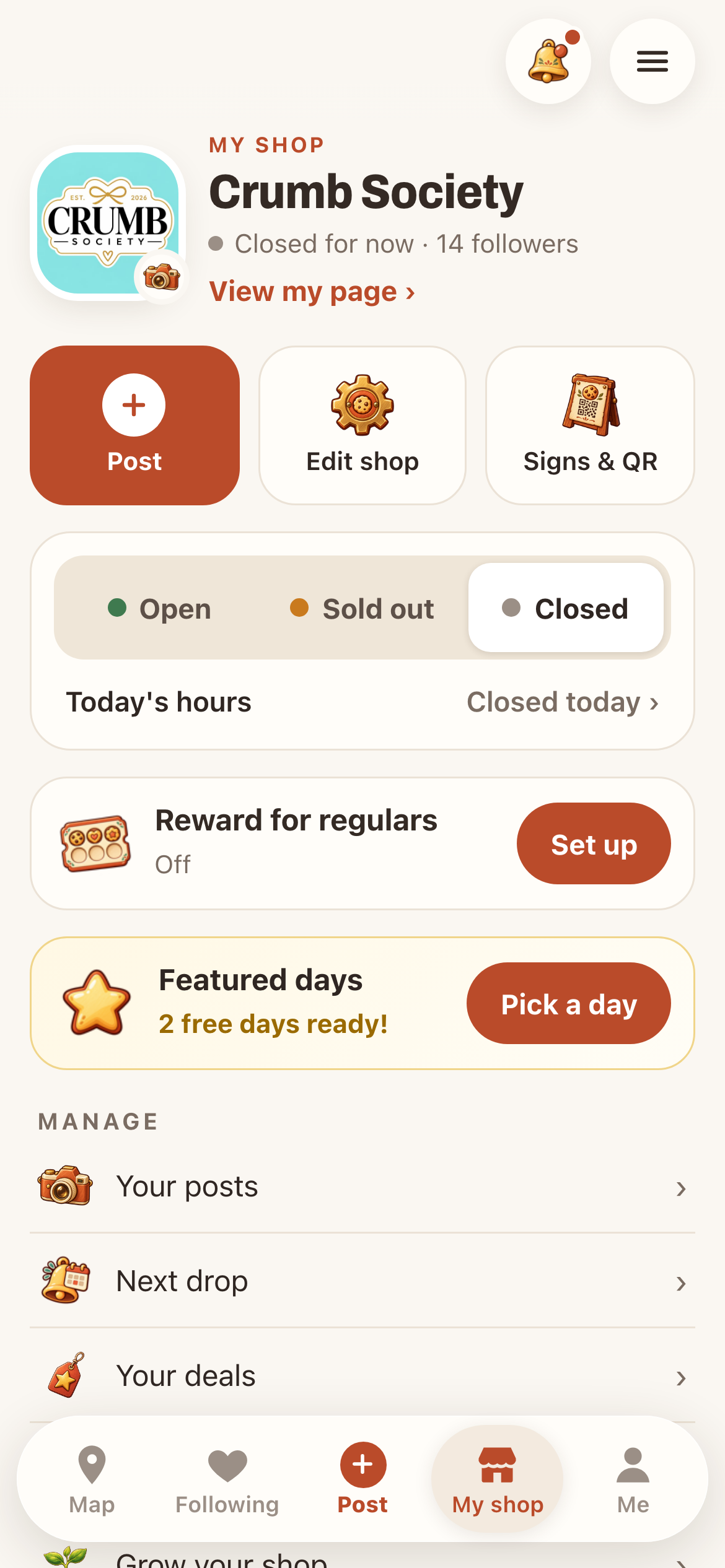
At the top:
- Post: share a photo, a drop or a deal.
- Edit shop: your name, story, photos, menu, hours and pickup details.
- Signs & QR: print the sign shoppers scan for stamps.
Below that:
- Open, Sold out, Closed: switch with one tap, with Today's hours underneath.
- Reward for regulars: your punch card.
- Featured days: pick or buy a day.
- Manage: Your posts, Next drop, Your deals and Grow your shop.
Your status
Tap Open when you're out, Sold out when you run out, and Closed when you're done. If you sell out early, a quick tap saves someone a trip.
Pick the right kind of post
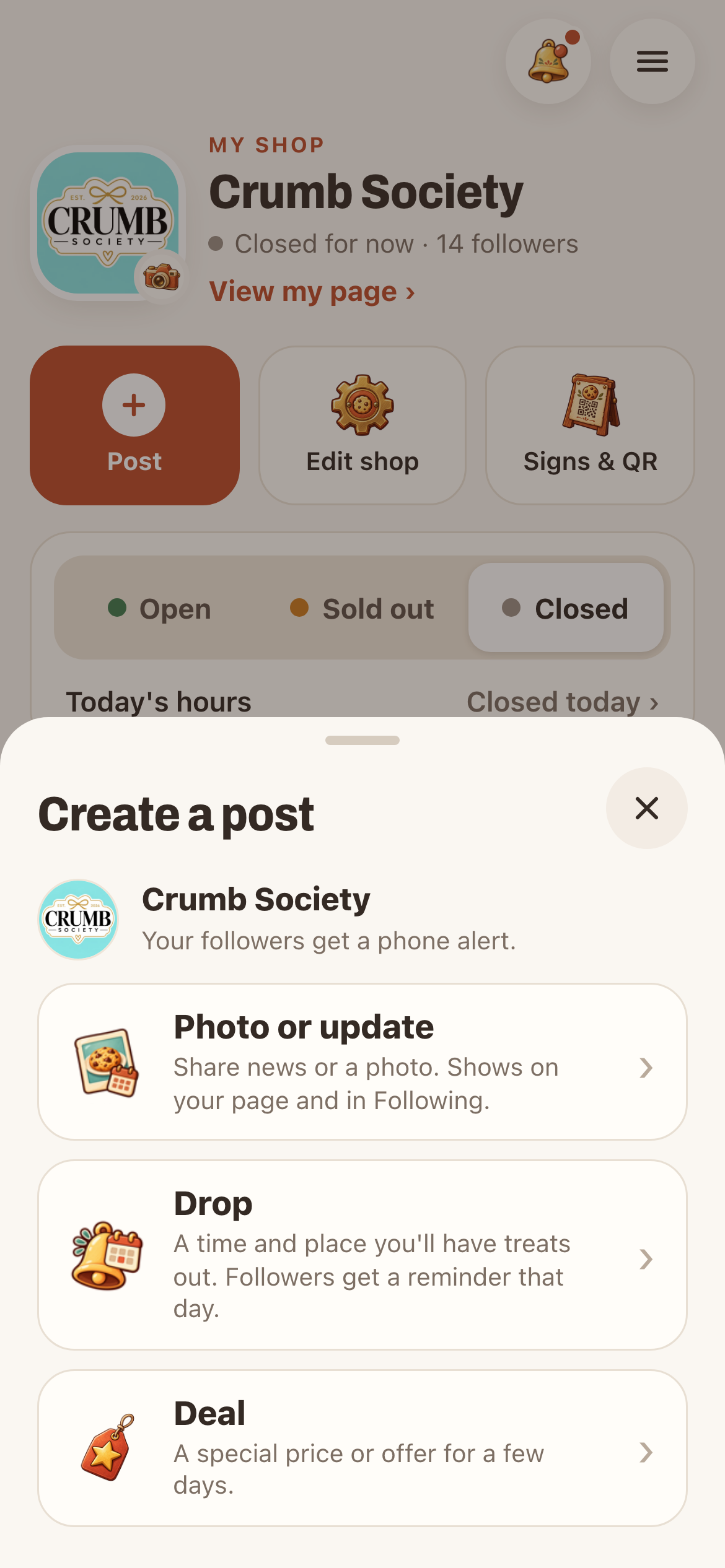
Tap Post in My shop or the + Post button in the tab bar:
- Photo or update: news or a photo. It shows on your page and in Following.
- Drop: a time and place you'll have treats out. Followers get a reminder that day.
- Deal: a special price or offer for a few days.
Your followers get a phone alert, depending on their alert settings. Include what it is, when and where, and how people pay you. Cartily doesn't take orders or payments for you.
A quick routine before you head out
- Set your status to Open.
- Post today's batch, with a photo if you have one.
- Check that your hours and pickup spot are right.
- Put your Cartily sign out where shoppers can scan it.
- Switch to Sold out or Closed as soon as that's true.
You don't have to post every day. Accurate information is what makes shoppers trust your page.